Why Building a Professional YouTube Presence Matters for Your Side Hustle
Learning how to make a YouTube brand channel is a crucial step for anyone serious about building an online income stream. Here’s the quick answer:
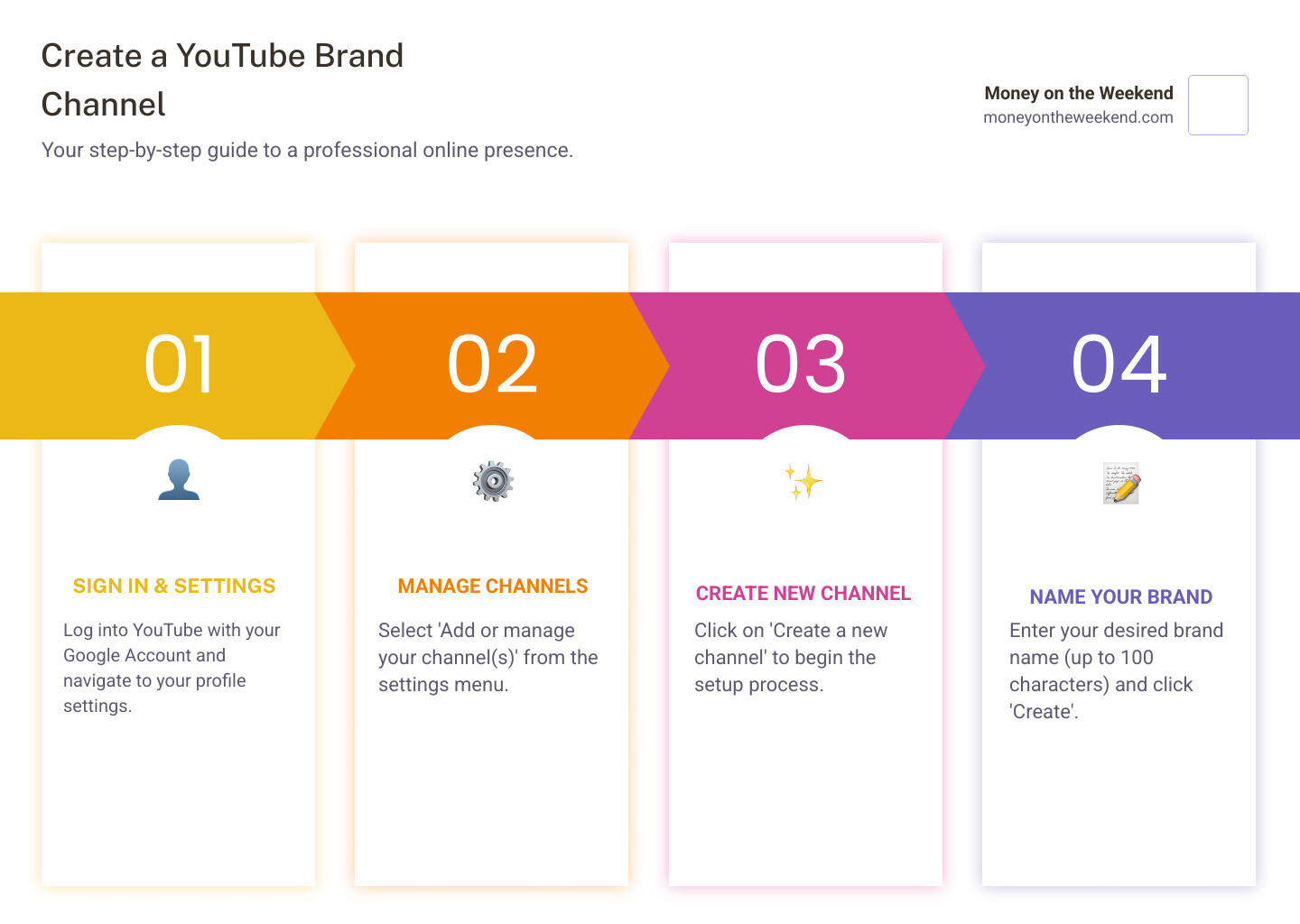
To make a YouTube brand channel:
- Sign into YouTube with your Google Account.
- Go to Settings by clicking your profile picture.
- Select “Add or manage your channel(s)”.
- Click “Create a new channel”.
- Enter your brand name (up to 100 characters).
- Click “Create” to establish your brand channel.
YouTube is the world’s second-largest search engine and a free platform to build your business. For side hustlers, a YouTube brand channel offers key advantages over a personal channel: it separates your business from your personal life, allows you to add team members securely, and presents a professional image to your audience.
A brand channel lets you use a business name, bring on collaborators to manage content, and manage multiple channels from a single Google account—perfect for scaling your income streams.
While converting an existing personal channel can seem daunting due to YouTube’s warnings, this guide will walk you through both starting fresh and migrating an existing channel safely. Properly setting up a brand channel is your first step toward building a sustainable online business.
What is a YouTube Brand Channel and Why Do You Need One?
A YouTube Brand Channel is designed for businesses and creators who want to separate their professional work from their personal Google Account. Unlike a personal channel tied to your name, a Brand Channel operates as an independent entity, allowing you to use a business name and collaborate with a team.
Think of it as moving your business from a personal space to a dedicated office. It allows for growth, team access, and a more professional setup. A Brand Channel lets your video editor, virtual assistant, or business partner manage content without ever needing your personal password or accessing your private data.
Here’s how they compare:
| Feature | Personal YouTube Channel | YouTube Brand Channel |
|---|---|---|
| Management | Managed solely by the Google Account owner | Can have multiple owners and managers |
| Naming | Uses your Google Account name | Can use a different name (e.g., business name) |
| Collaboration | Limited to single user | Enables team collaboration without sharing passwords |
| Security | Tied to personal Google Account | Separated, reducing risk to personal data |
| Scalability | Less flexible for business growth and multiple brands | Ideal for managing multiple channels and scaling operations |
| Use Case | Personal vlogging, individual content creation | Business, organizations, team-based content, multiple brands |
Key Benefits for Your Business or Side Hustle
A Brand Channel is a valuable tool for building your online income. Here’s why:
- Multiple Managers: Grant access to team members like editors or assistants without sharing your Google password. Your personal information remains private.
- Professional Separation: Your business presence operates independently of your personal Google Account, keeping your browsing history, emails, and photos separate.
- Improved Professionalism: Using a brand name and logo builds trust and establishes credibility with your audience and potential customers.
- Scalability: Easily manage multiple YouTube channels for different niches from a single Google Account, all under one dashboard.
- Better Tool Integration: Brand Accounts integrate more smoothly with professional analytics, content management, and marketing automation tools.
Checking if You Already Have a Brand Channel
Before creating a new channel, check if you already have one. You can do this in a few ways:
- Visit your channel list. This page shows all channels, personal and brand, connected to your Google Account.
- Go to https://myaccount.google.com/brandaccounts. This page definitively lists all Brand Accounts you manage.
- Check your YouTube Advanced Settings. If you see an option to “Move channel to a brand account,” your current channel is a personal one.
If you already have a Brand Account, you can skip to the optimization sections. If not, the next section will guide you through creating one.
Step-by-Step: How to Make a YouTube Brand Channel from Scratch
Starting with a new Brand Channel is the cleanest route for a professional YouTube presence. This approach avoids migration risks and lets you build on a clean foundation, focusing on content creation from day one.
Prerequisites for a New Channel
Before you begin, you only need one thing: a Google Account. If you don’t have one, you can create one at the Google Account Setup page.
Pro Tip: Consider creating a separate Google Account specifically for your business. This keeps your professional and personal lives separate and simplifies security when you eventually add team members. No existing YouTube channel is needed to start.
How to make a YouTube brand channel if you’re starting new
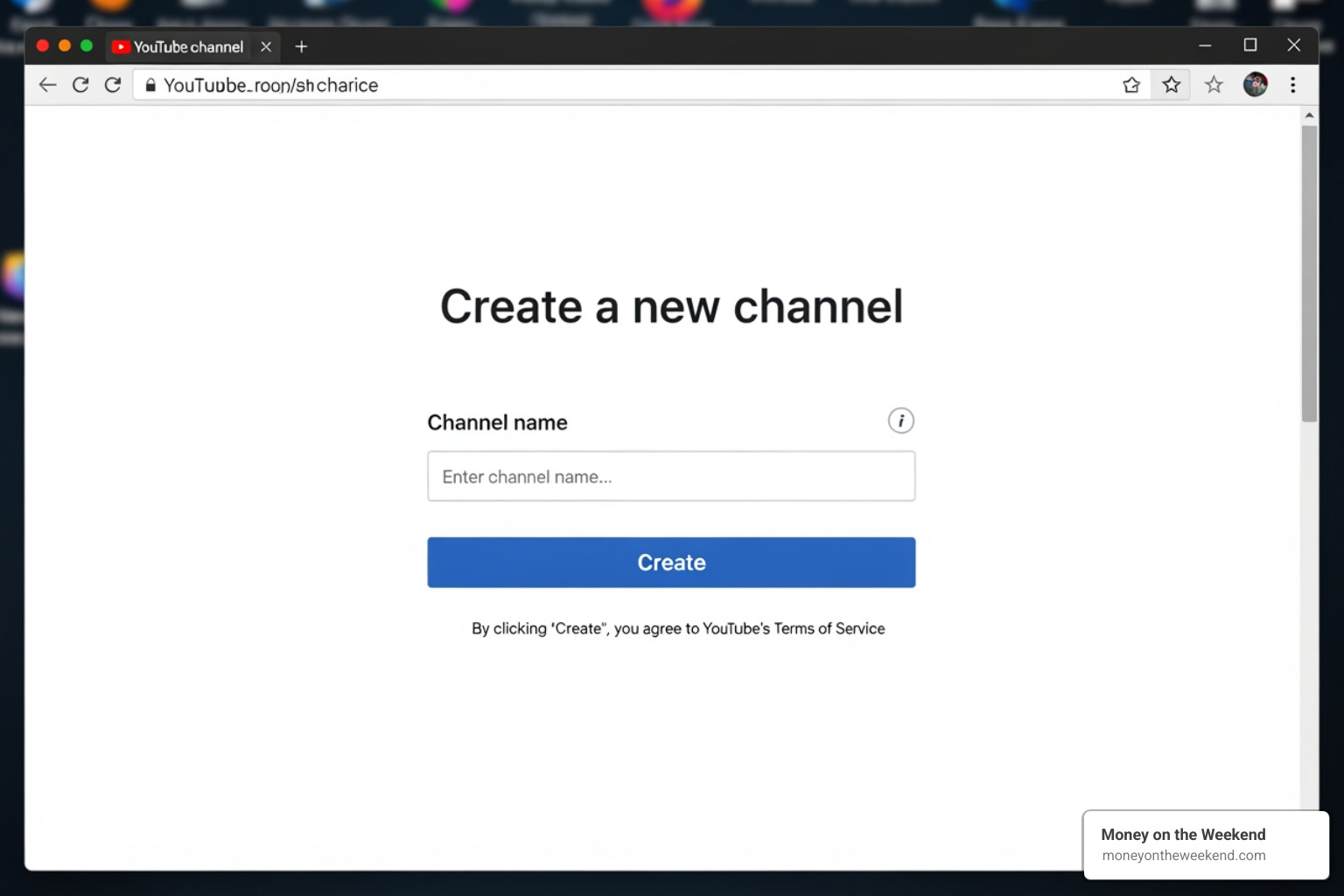
Creating your Brand Channel takes just a few minutes. Follow these steps:
- Sign into YouTube: Go to YouTube and log in with the Google Account you want to associate with your business.
- Steer to Your Channel List: Click your profile picture in the top-right corner, select “Settings,” and then click “Add or manage your channel(s).” You can also go directly to the channel list page.
- Create a New Channel: Click the “Create a channel” button. This will start the process of creating a Brand Account separate from your personal profile.
- Enter Your Brand Name: You’ll be prompted to name your new channel. You have up to 100 characters, so choose a name that is clear, memorable, and reflects your brand’s mission.
- Click “Create”: With that final click, your YouTube Brand Channel is established. You’ll be taken to your new, empty channel page, ready for you to start uploading content.
Your professional home base is now ready. The next step is to build your audience and create valuable content to grow your online income.
Migrating Your Personal Channel to a Brand Channel
If your personal channel already has subscribers and videos, you can move it to a Brand Channel to open up professional features. This process requires careful execution to avoid losing your content.
Before You Move: Critical Warnings and Preparations
YouTube’s warnings during this process are serious. Performing the move incorrectly can permanently delete your channel and all its content. The primary risk is selecting the wrong channel during the transfer, which can cause your active channel to be deleted.
Before you start:
- Understand the Risk: A mistake in this process is irreversible. Proceed with caution and double-check every step.
- Back Up Your Data (Optional): For peace of mind, consider downloading your original video files. While the transfer is designed to be seamless, having a local backup is a smart precaution.
- Remove Channel Managers: If your personal channel has any managers, remove them before starting to prevent complications.
How to make a YouTube brand channel by moving an existing one
This process moves all content from your personal channel to a new or existing Brand Account. Follow these steps precisely:
- Create an Empty Brand Channel: You need a destination for your content. If you don’t have one, create a new, empty Brand Channel with your desired business name. Do not upload any content to it.
- Sign In to Your Personal Channel: Ensure you are logged into the YouTube account you intend to move.
- Go to Advanced Settings: Click your profile picture > “Settings” > “Advanced settings,” or go directly to https://www.youtube.com/account_advanced.
- Initiate the Move: Click the “Move channel to a brand account” link.
- Select the Destination: Carefully choose the empty Brand Channel you created in step 1. This is the most critical step.
- Confirm the Transfer: YouTube will explain what will be moved. Your videos, subscribers, views, and metadata will transfer. However, your comments, replies, custom URL, and watch/search history will be lost.
- Finalize the Move: You will be asked to confirm the replacement. This involves clicking a button that may say “Delete Channel.” This action deletes the empty destination channel and replaces it with your personal channel’s content. It is a necessary but intimidating step.
After confirming, the migration may take up to 15 minutes. Once complete, verify in YouTube Studio that all your videos and subscribers have transferred successfully.
Reclaiming Your Custom URL After the Move
Moving your channel will temporarily disable your custom URL. You can usually reclaim it, but there are conditions.
- Eligibility: To set a new custom URL, your channel must have 100+ subscribers, be 30+ days old, and have a profile picture and banner art. Your migrated channel should already meet these criteria.
- Waiting Period: You may need to wait up to 30 days after the move before YouTube allows you to claim a new custom URL. This is a common delay.
Once eligible, you can set a new URL in your channel’s customization settings. In many cases, you can reclaim your original URL.
Branding and Optimizing Your Channel for Success
Once you know how to make a YouTube brand channel, the next step is to optimize it for findy and growth. A well-branded channel acts as your digital storefront, attracting your target audience and encouraging them to subscribe.
Essential Branding Elements
Your channel’s branding creates the first impression. Ensure these elements are professional and consistent.
- Channel Name: Use your business name or a memorable name related to your niche.
- Channel Icon: Your logo or profile picture. Use an 800x800px image for best quality.
- Channel Banner: The large image at the top of your channel. Use a 2560x1440px image, keeping key info within the 1546x423px safe area for all devices.
- Channel Description: Your “About” section. Clearly state your channel’s purpose and target audience. Use keywords and include a call to action within the 1,000-character limit.
- Channel Trailer: A short video (under 60 seconds) for non-subscribers that explains why they should subscribe.
- Video Watermark: A small, clickable subscription button (150x150px) that overlays your videos.
Optimizing for Findability and Engagement
Use these strategies to help viewers find your channel and keep them watching.
- Keyword Research: Use YouTube-specific tools to find what your audience is searching for. Integrate these keywords into your channel description, video titles, and descriptions.
- Compelling Thumbnails: Design eye-catching 1280x720px thumbnails that clearly communicate the video’s topic and use consistent branding.
- Playlists: Group related videos into playlists (e.g., “Passive Income Strategies”) to encourage binge-watching and increase session time.
- End Screens and Cards: Use these interactive elements to promote other videos, playlists, or your subscribe button at the end of your videos (End Screens) or during them (Cards).
- Consistent Posting Schedule: Uploading regularly signals to YouTube’s algorithm that your channel is active, which can improve visibility and build subscriber loyalty.
- Custom Chapters: For longer videos, add timestamped chapters in the description to help viewers steer your content. You need at least three chapters, each 10+ seconds long.
- Channel Links: Add links to your website and social media profiles, which can be featured on your channel banner.
Managing Your Team and Channel Settings
A key benefit of a YouTube Brand Channel is the ability to securely add team members to help manage your channel. This allows you to delegate tasks like video uploads or comment moderation without sharing your personal Google Account password, which is essential for scaling your online business securely.
Adding and Managing Owners & Managers
Assigning roles to team members is straightforward. Here’s how to make your YouTube brand channel collaborative:
- Sign in to YouTube with the account that owns the Brand Channel.
- Go to YouTube Studio at http://studio.youtube.com.
- In the left-hand menu, click “Settings,” then select “Permissions.”
- Click “Invite” and enter the email address of the person you want to add.
- Assign a role. The main roles are:
- Owner: Has full control, including adding/removing users and deleting the channel. Reserve this for trusted business partners.
- Manager: Can upload videos, manage comments, and view analytics, but cannot manage permissions or delete the channel. Ideal for most team members.
- Editor: Can upload and edit videos, create playlists, and view analytics, but has no access to permissions or content deletion.
- Click “Save” to send the invitation.
To remove a user, return to the “Permissions” section, find the person’s name, and select “Remove access” from the dropdown menu next to their role. This simple system allows you to manage your team effectively as your channel grows.
Frequently Asked Questions about YouTube Brand Channels
Here are answers to common questions about how to make a YouTube brand channel.
Can I lose my channel and videos when moving to a Brand Channel?
Yes, there is a real risk of permanent content loss if the process is done incorrectly. The danger lies in selecting the wrong channel during the move, which causes your active channel’s content to be deleted. It is critical to follow instructions precisely and double-check every step, as mistakes are irreversible.
What is the main difference between an ‘Owner’ and a ‘Manager’?
The key difference is control. An Owner has complete control, including the ability to add or remove other users and delete the channel entirely. A Manager can handle day-to-day operations like uploading videos and managing comments, but cannot add/remove users or delete the channel. The Manager role is safer for delegating tasks to team members.
Will I lose my custom URL forever after moving my channel?
No, but you will lose it temporarily. After the move, your custom URL will be disabled. However, once your channel meets the eligibility requirements again (100+ subscribers, 30+ days old, channel art), you can claim a new custom URL. There may be a waiting period of up to 30 days, but you can often reclaim your original URL or a close variation.
Conclusion
Learning how to make a YouTube brand channel is a foundational step for anyone serious about building an online income. It transforms your YouTube presence from a personal hobby into a professional, scalable business asset.
The key benefits—team collaboration without sharing passwords, a distinct brand identity, and the flexibility to grow—are essential for digital entrepreneurs. By following the steps for creation or migration and optimizing your channel, you build a valuable platform for attracting an audience and paving your way toward financial freedom.
At Money on the Weekend, we aim to empower you on this journey. A well-crafted YouTube Brand Channel is a powerful tool in your arsenal to connect, educate, and grow your online ventures.